








About this PowerPoint template
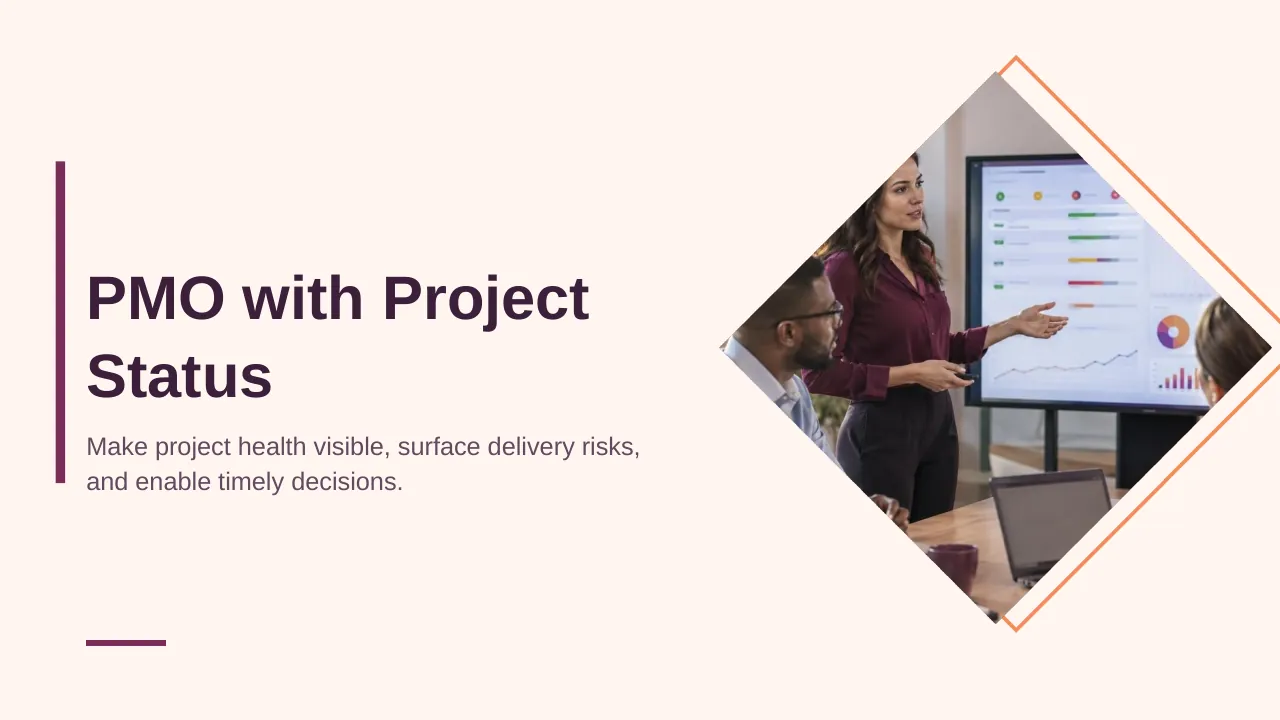
The PMO with Project Status PowerPoint Template is a complete 30-slide presentation: make project health visible, surface delivery risks, and enable timely decisions. Every slide is fully editable in PowerPoint and Google Slides, so you can change the text, colours, charts and icons to fit your brand in minutes.
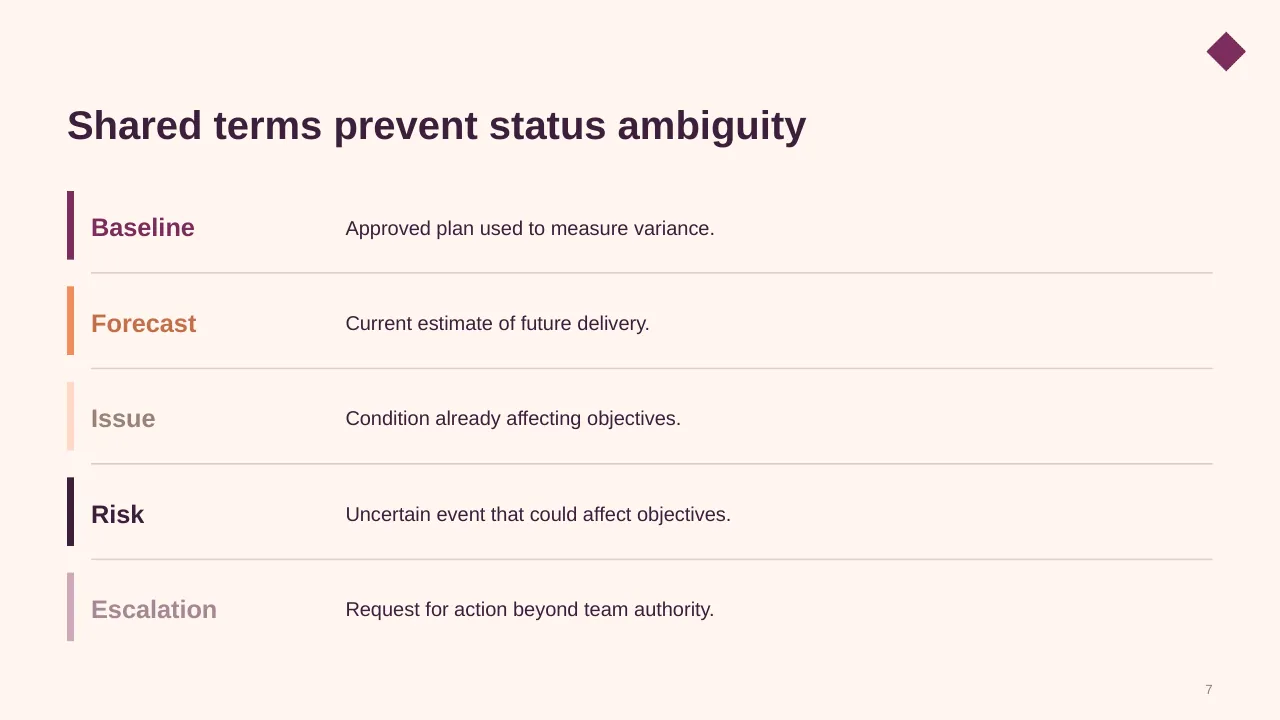
Inside, the slides walk through topics such as “Approved plan used to measure variance”, “Engage stakeholders by influence and interest” and “A strong PMO status loop creates confidence”, with ready-made layouts for each step. It is part of our Project Management presentations.
On this page
What's included
- 30 professionally designed 16:9 widescreen slides
- 100% editable text, shapes, icons, tables and charts (no flat images)
- Works in Microsoft PowerPoint (Windows and Mac) and Google Slides
- Clean, consistent layout that follows your theme colours and fonts
- Delivered as a single ZIP file containing the .pptx presentation
What to include in a project status report
A simple structure that works for most audiences, mapped to the slides in this deck:
| Part | What goes there | Slide in this deck |
|---|---|---|
| Overall status | RAG status for scope, schedule, budget and quality | Slides 3, 12, 19 |
| Progress | What was completed since the last report | Slides 5, 18 |
| Milestones | Upcoming dates and whether they are on track | Slides 7, 27 |
| Risks and issues | New or escalated items, with owners | Slide 30 |
| Decisions needed | What you need from the audience, and by when | Slides 2, 3, 4 |
Key numbers: Project management
Research figures you can quote on your slides. Each one names the study it comes from, so your audience can check it.
| Finding | Figure | Source |
|---|---|---|
| Average project performance rate (completed projects that met business goals) | 73.8% | PMI Pulse of the Profession (2025) |
| Success rate of projects that navigate complexity well vs poorly | 88% vs 14% | PMI Pulse of the Profession (2026) |
| Success rate with a structured framework vs without | 72% vs 61% | PMI Pulse of the Profession (2026) |
| Projects that define success criteria upfront succeed at | nearly 2× the rate | PMI Pulse of the Profession (2025) |
Sources: PMI Pulse of the Profession 2026 (press release) · PMI report coverage, PM Global · Project statistics summary (PMI 2025), Breeze. Figures are from the editions named; check for a newer edition before you present.
Slide-by-slide outline
| Slide | What it covers |
|---|---|
| 1 | Title slide: PMO with Project Status |
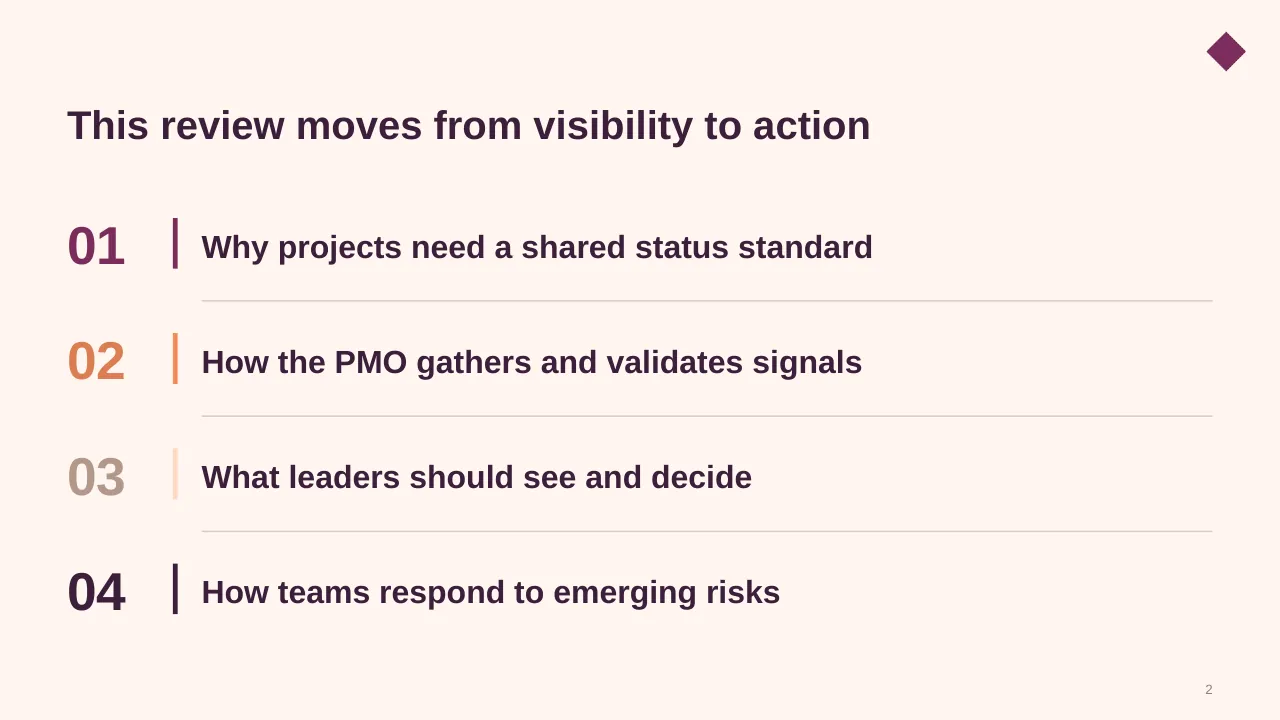
| 2 | This review moves from visibility to action |
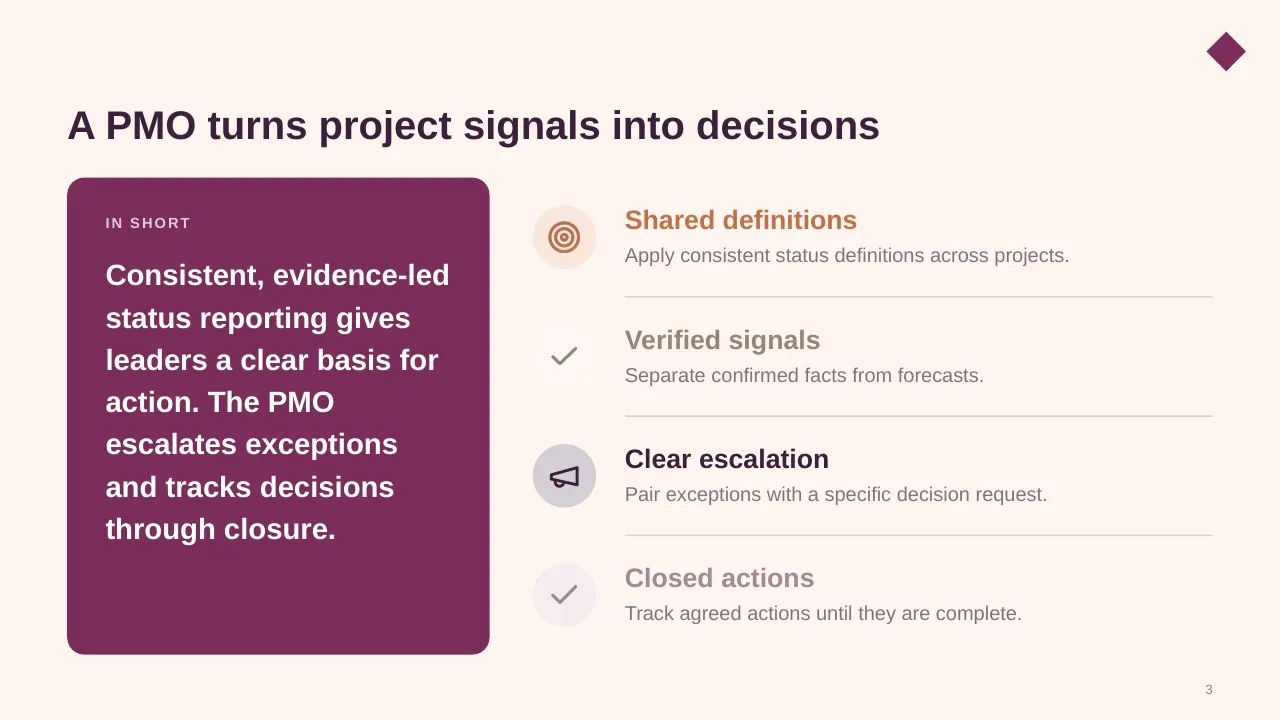
| 3 | Consistent, evidence-led status reporting gives leaders a clear basis for action. The PMO escalates… |
| 4 | Use one portfolio language, evidence before opinion, and decisions linked to action. |
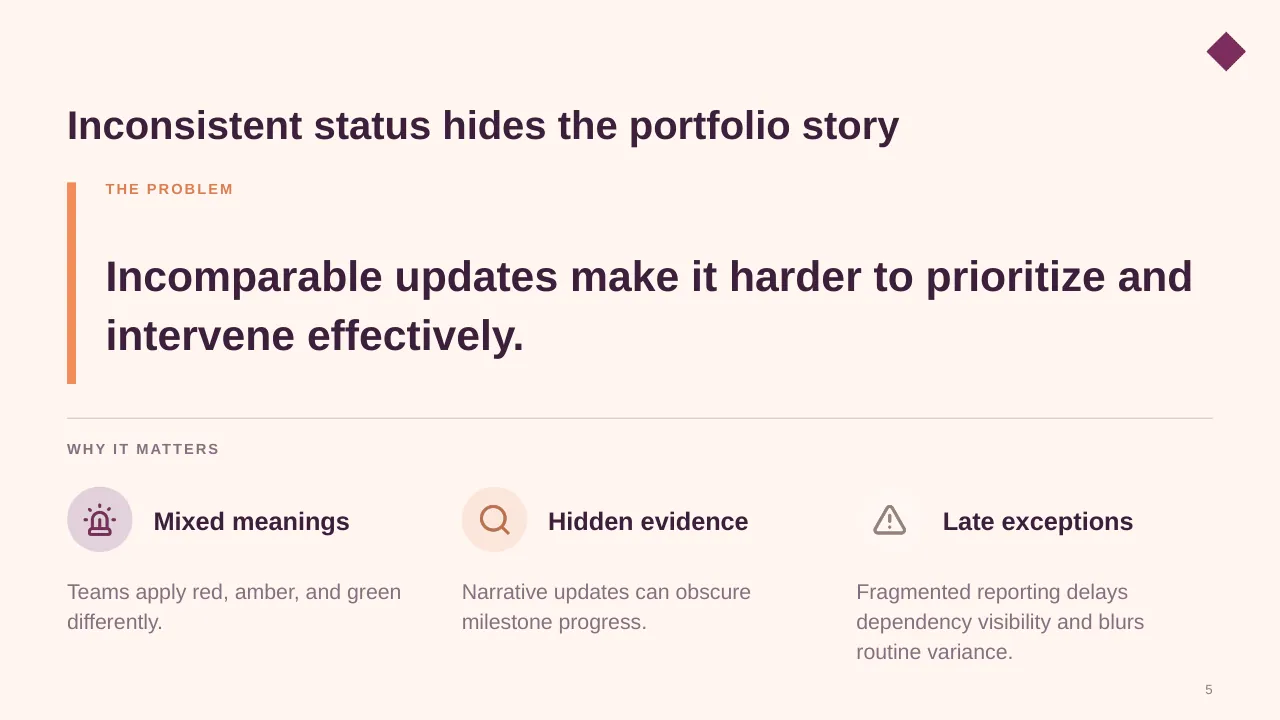
| 5 | Incomparable updates make it harder to prioritize and intervene effectively. |
| 6 | Report conditions honestly, raise concerns early, and focus discussion on recovery—not blame. |
| 7 | Approved plan used to measure variance. |
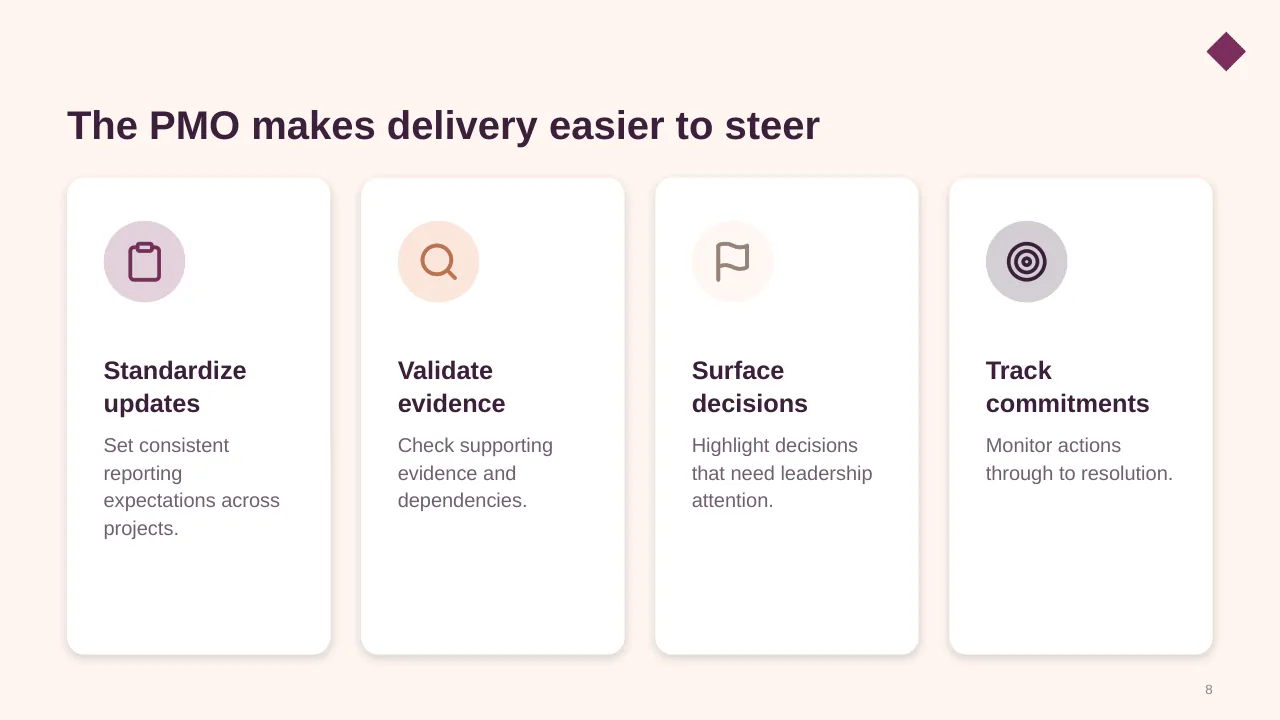
| 8 | Set consistent reporting expectations across projects. |
| 9 | Use clear rules, named owners, and a repeatable review cadence. |
| 10 | Connect project detail to portfolio decisions |
| 11 | Report the same dimensions for every project |
| 12 | A weekly cadence keeps status current |
| 13 | Make accountability explicit in reporting |
| 14 | Resource unavailable: confirm backup coverage with the resource owner |
| 15 | Turn project signals into cross-project exposure and leadership attention. |
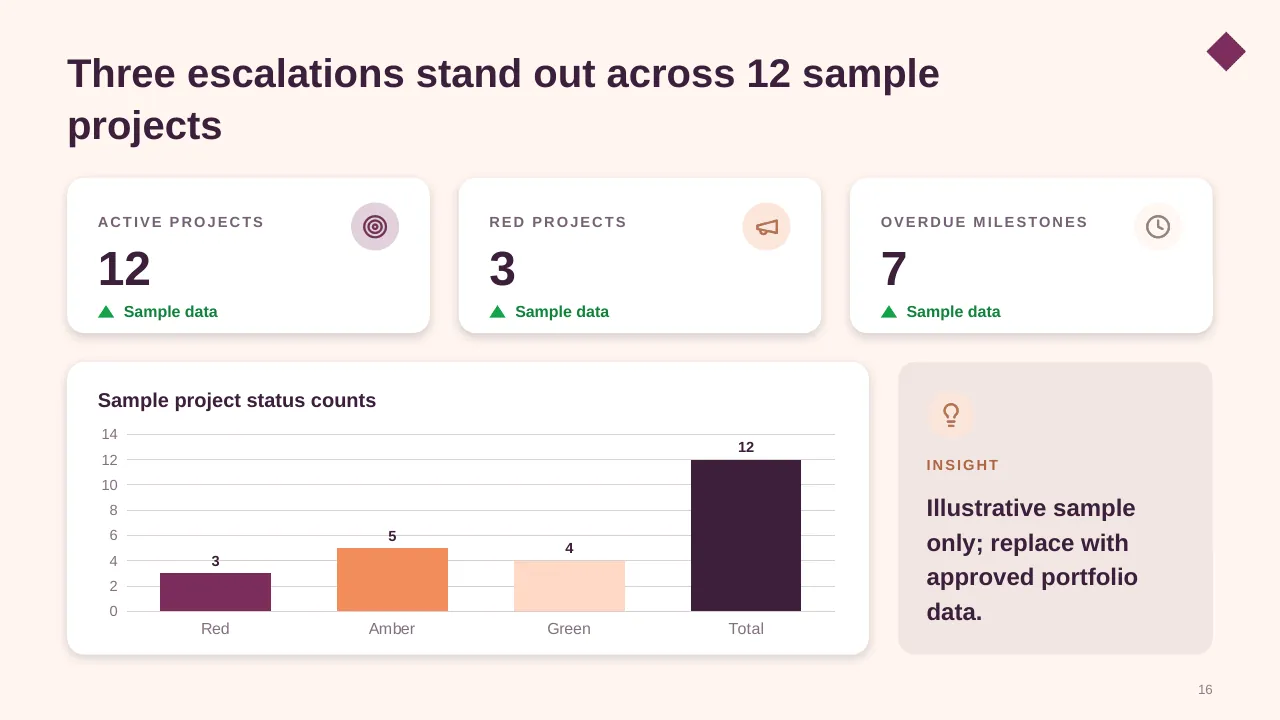
| 16 | Three escalations stand out across 12 sample projects |
| 17 | Engage stakeholders by influence and interest |
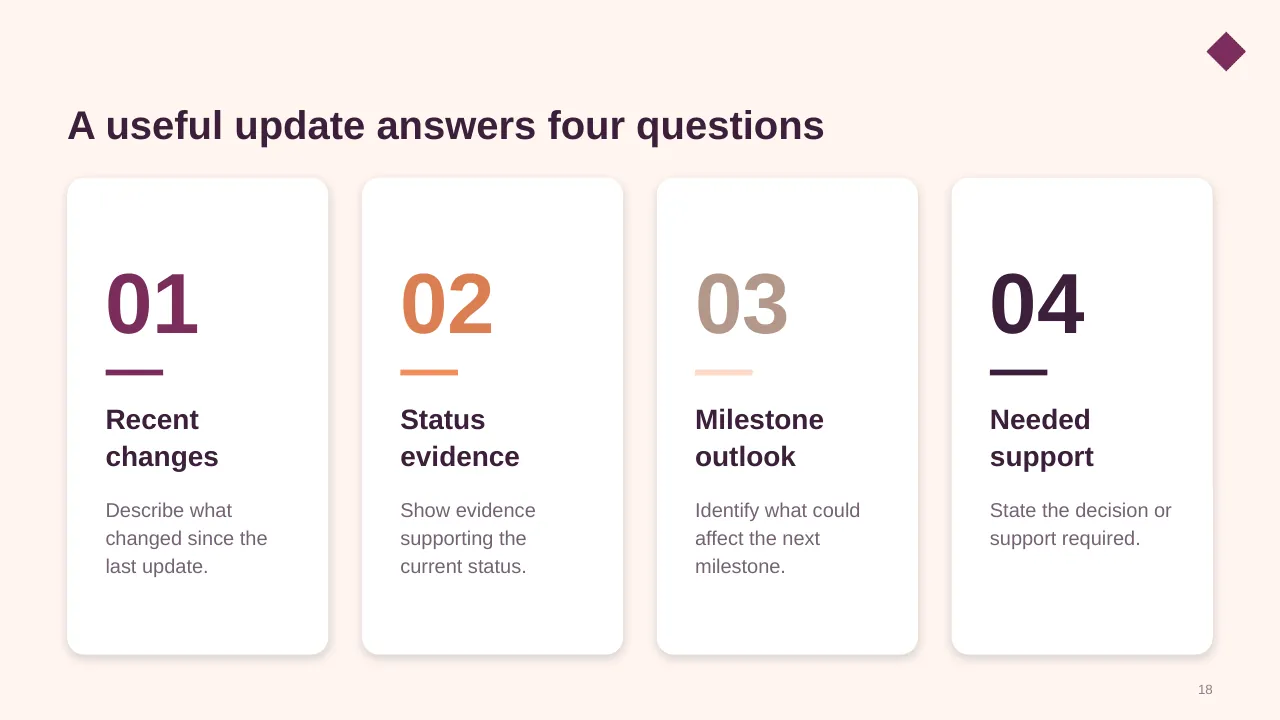
| 18 | A useful update answers four questions |
| 19 | Set status goals teams can apply |
| 20 | Detect the signal, assess its impact, and route the decision to an accountable owner. |
| 21 | Route exceptions to the right decision-maker |
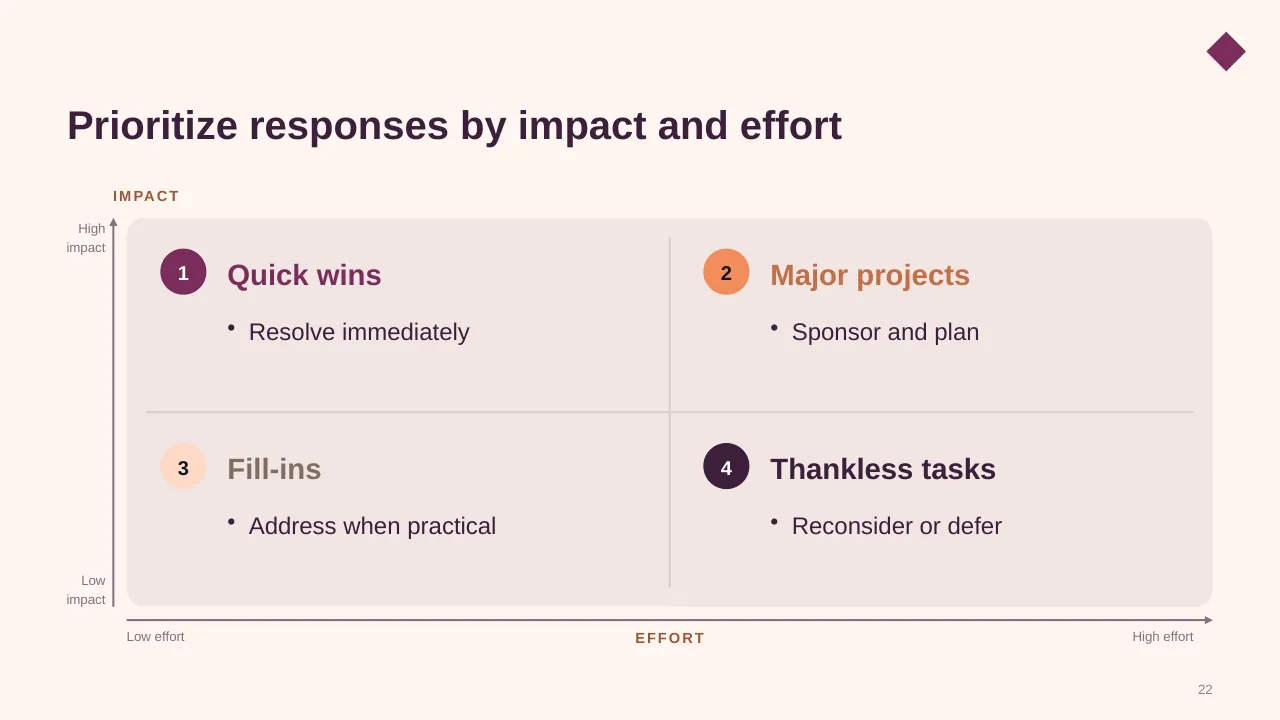
| 22 | Prioritize responses by impact and effort |
| 23 | Strengthen the system in three horizons |
| 24 | Project evidence Owners and agreed standards |
| 25 | Keep evidence close, ownership visible, and decisions followed through. |
| 26 | Good status reporting is brief and evidence-led |
| 27 | Milestones compare against an approved baseline. |
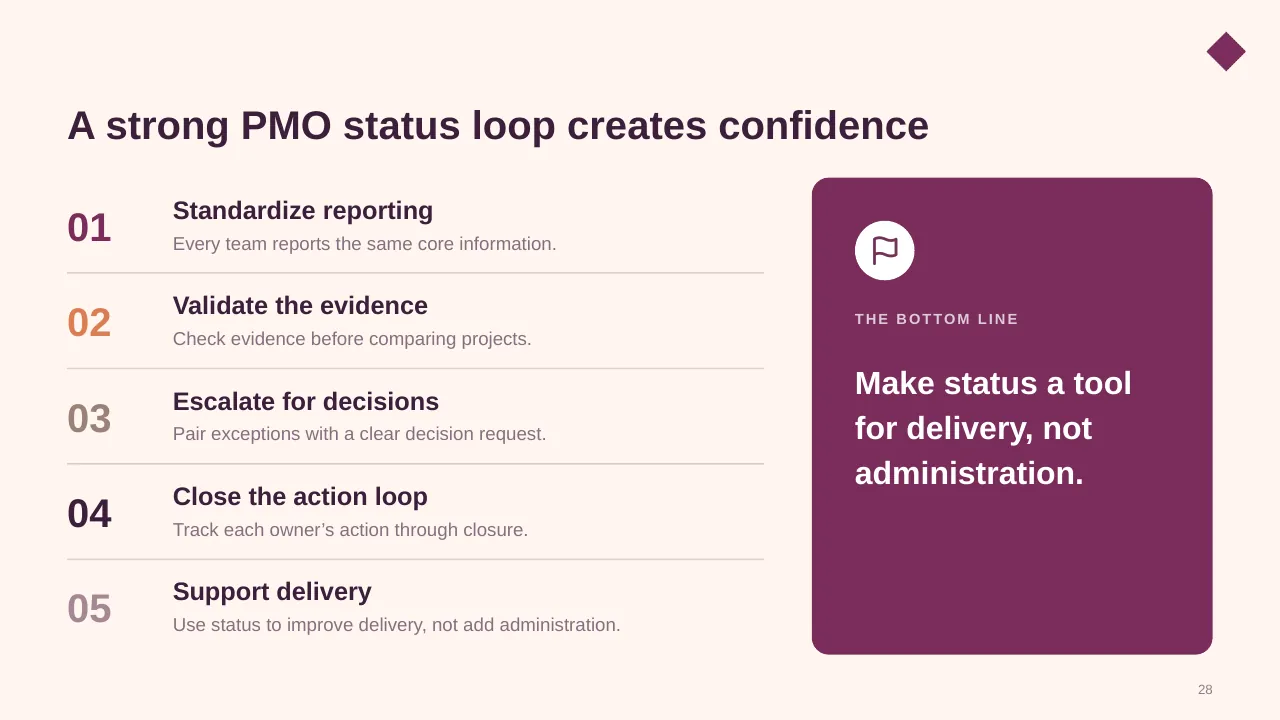
| 28 | A strong PMO status loop creates confidence |
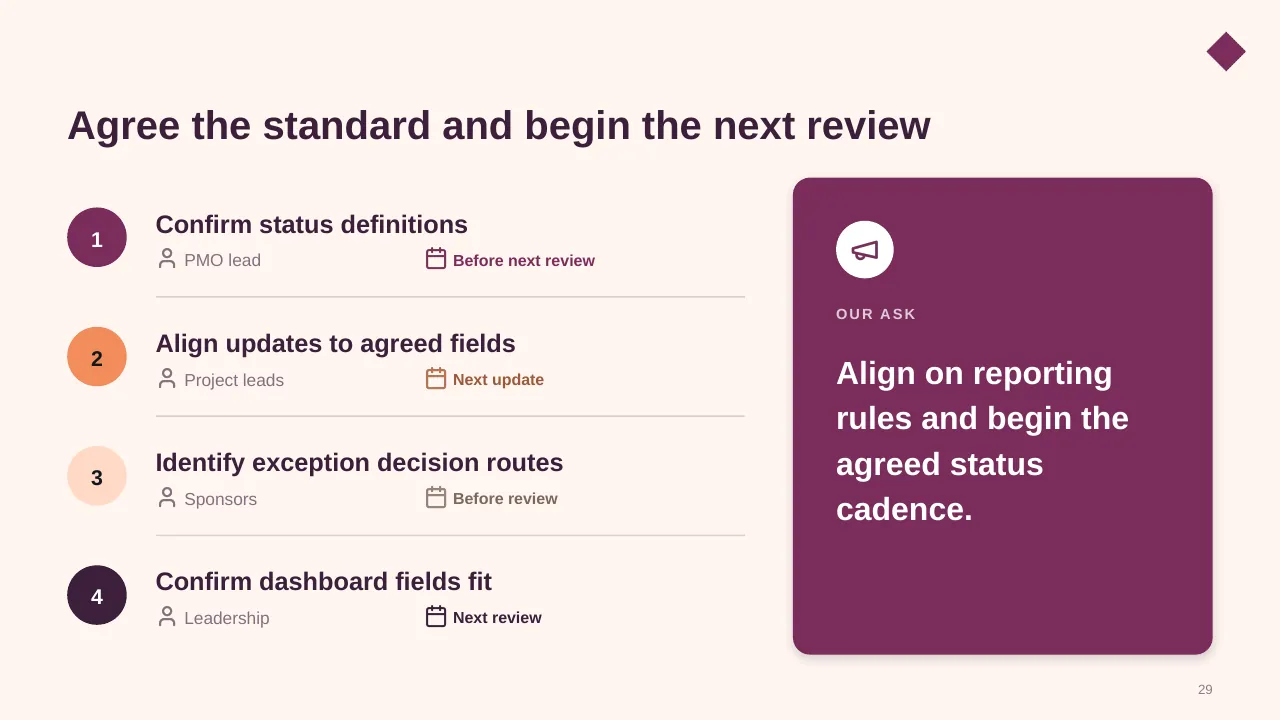
| 29 | Agree the standard and begin the next review |
| 30 | Use shared evidence, raise risks early, and turn escalations into owned actions. |
Tips for a project status report
- Put the overall status and the ask on the first slide.
- Explain every amber or red with one line: cause, impact, fix.
- Keep the format the same every week so changes stand out.
- Show trends (last 4 reports), not just today's colour.
Mistakes to avoid
- Everything green until it suddenly turns red
- Long task lists instead of exceptions
- No clear ask
Checklist before you present
- Is the overall RAG status explained?
- Are milestones shown against the baseline?
- Are new risks flagged?
- Is there a clear decision or ask?
- Is the date of the report on the slide?
Great for
- Project kickoff meetings
- Weekly and monthly status reports
- Steering committee and governance updates
- Agile sprint planning and reviews
How to customise it
- Download the ZIP file and unzip it to get the .pptx presentation.
- Open it in PowerPoint, or upload it to Google Drive and open it with Google Slides.
- Replace the sample text and numbers with your own; charts update from their data sheets.
- Change the theme colours once to recolour the whole deck, then delete any slides you don't need.
Questions about a project status report
What does RAG mean in a status report?
Red, Amber, Green. Green is on track, amber is at risk but recoverable, and red needs help or a decision to recover.
How often should project status be reported?
Weekly for the project team and sponsor is common; monthly for steering committees and portfolio reviews.
Related presentations
- Agile Sprint Plan PowerPoint Template
- Agile Development PowerPoint Template
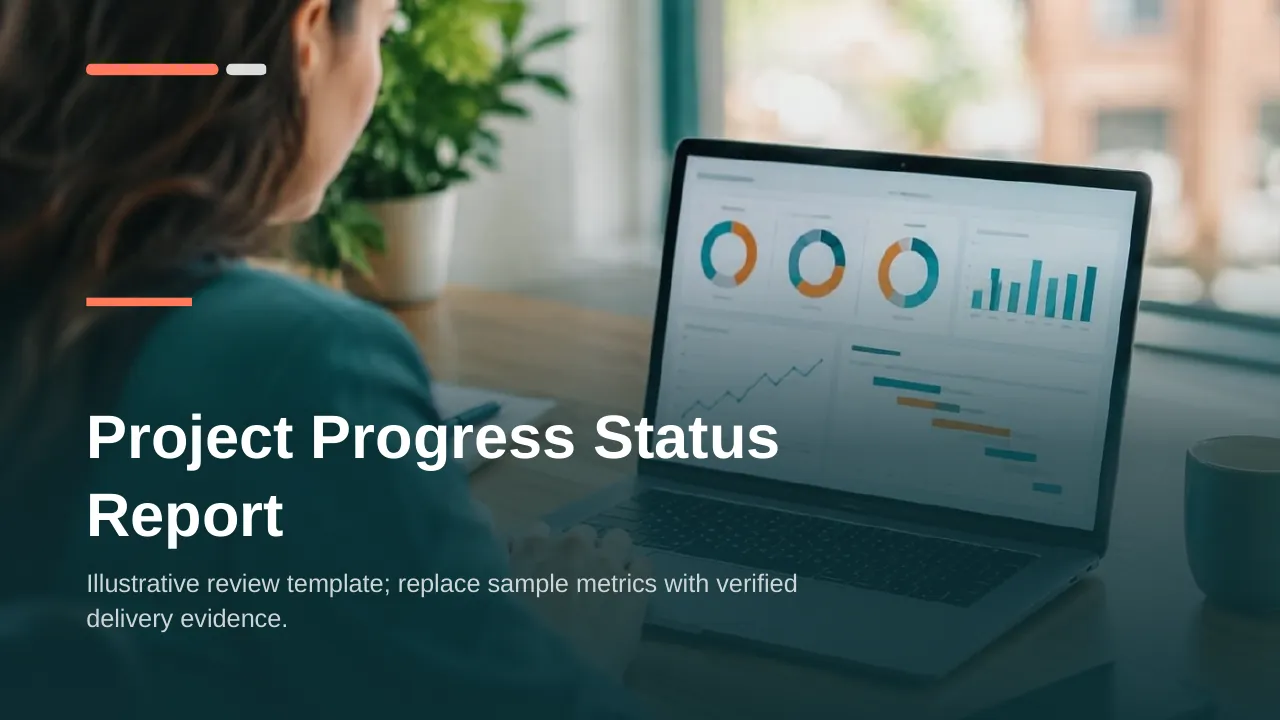
- Project Status Report PowerPoint Template
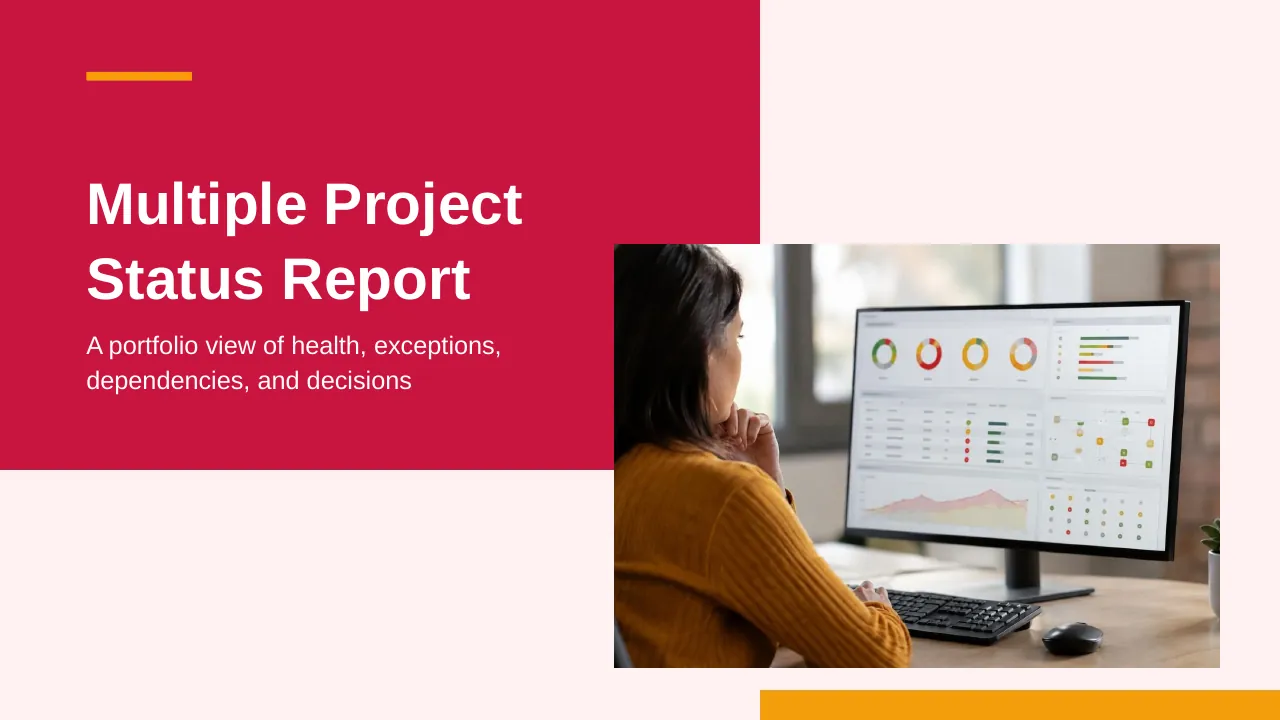
- Multiple Project Status Report PowerPoint Template
Browse all Project Management presentations or more business PowerPoint templates.
Template details
| Template | PMO with Project Status PowerPoint Template |
|---|---|
| Categories | Business PowerPoint Templates, Project Management |
| File format | PowerPoint (.pptx), delivered as a .zip file |
| Number of slides | 30 fully editable slides |
| File size | 1.8 MB |
| Slide size | 16:9 widescreen |
| Preview images | 30 |
| Editable | Yes: text, colours, shapes, icons and charts |
| Works with | PowerPoint 2010 and later, PowerPoint for Mac, Google Slides |
| Licence | Royalty-free, yours to keep using after your plan ends (terms of use apply) |
| Price | Included in every SlideVilla plan |
| Added | 19 Apr 2025 |
Questions about this template
Can I edit the PMO with Project Status PowerPoint Template?
Yes. Every part of the PMO with Project Status PowerPoint Template is made with native PowerPoint shapes and text boxes, so you can change the wording, colours, fonts and sizes, move or delete elements, and swap icons without losing quality.
Does the PMO with Project Status PowerPoint Template work in Google Slides?
Yes. Download the .zip file, unzip it to get the .pptx, upload it to Google Drive and open it with Google Slides. The layout, shapes and text stay editable there too.
Is the PMO with Project Status PowerPoint Template free?
It is a premium template, included in every SlideVilla plan together with the rest of the library. See plans and pricing.
What size and format is it?
It is a PPTX file in 16:9 widescreen format with 30 slides, 1.8 MB (downloaded as a .zip; unzip it to get the presentation), with 30 preview images shown above.
How to use this template
- Step 1DownloadClick Download, then unzip the .zip file to get the .pptx presentation.
- Step 2OpenOpen it in PowerPoint, or upload it to Google Slides from your Drive.
- Step 3Make it yoursChange text, colours, icons and charts. Every element is fully editable.
Related PowerPoint templates
More designs like this one, ready to edit.