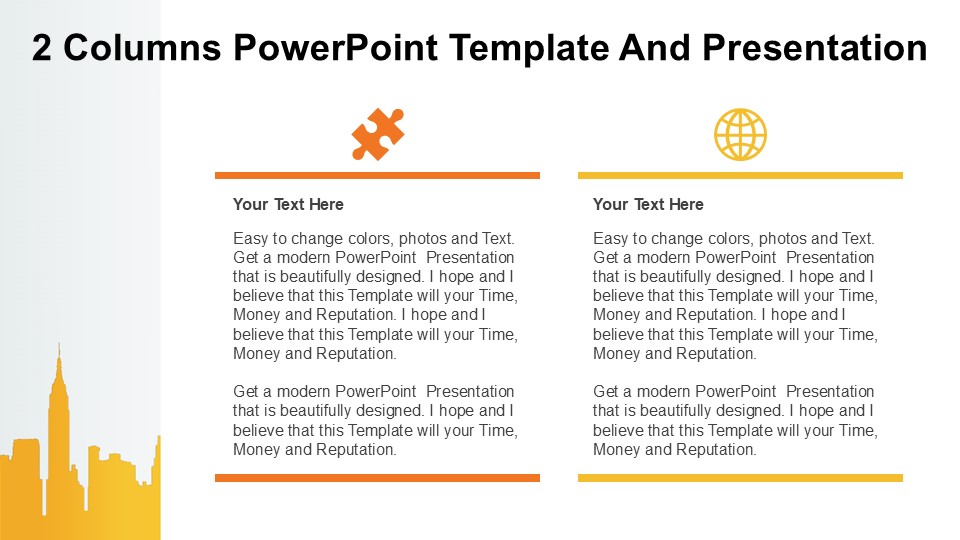
About this PowerPoint template
Introducing the List And Column Show PowerPoint Template, a professional and modern presentation design that is perfect for showcasing information in a clear and visually appealing way. With this template, you can easily create engaging slides that will capture your audience's attention and effectively communicate your message.
The List And Column Show PowerPoint Template features a clean and minimalistic design with sleek layouts that allow you to display lists and columns of information in a structured manner. Whether you are presenting data, statistics, timelines, or any other content that requires a clear layout, this template has got you covered.
This template includes a variety of slide layouts, including list templates, column templates, title slides, content slides, and more. Each slide is fully editable, allowing you to customize the colors, fonts, and layout to suit your brand or presentation style. The template is designed to be user-friendly, so even if you are not a design expert, you can easily create professional-looking slides with ease.
In addition to its sleek design and ease of use, the List And Column Show PowerPoint Template also comes with a range of features that make it a valuable asset for any presenter. Some of the key features include:
- Fully editable templates: Easily customize the colors, fonts, and layout of each slide to create a unique and professional presentation.
- Drag and drop functionality: Quickly and easily rearrange elements on the slide to create a customized layout that suits your content.
- Infographic elements: Add visual interest to your slides with built-in infographic elements that help to simplify complex information.
- Data charts and graphs: Present your data in a clear and organized way with customizable data charts and graphs.
- Image placeholders: Easily insert your own images into the slide placeholders to add visual impact to your presentation.
With its sleek design, easy-to-use features, and fully editable templates, the List And Column Show PowerPoint Template is the perfect choice for anyone looking to create engaging and professional presentations. Whether you are presenting at a business meeting, conference, or workshop, this template will help you to communicate your message effectively and leave a lasting impression on your audience.
Template details
| Template | List And Column Show PowerPoint Template |
|---|---|
| Category | PowerPoint Templates |
| File format | PowerPoint (.pptx) |
| Slide size | 16:9 widescreen |
| Preview images | 1 |
| Editable | Yes: text, colours, shapes, icons and charts |
| Works with | PowerPoint 2010 and later, PowerPoint for Mac, Google Slides |
| Licence | Royalty-free, yours to keep using after your plan ends (terms of use apply) |
| Price | Included in every SlideVilla plan |
| Added | 2 Nov 2024 |
Questions about this template
Can I edit the List And Column Show PowerPoint Template?
Yes. Every part of the List And Column Show PowerPoint Template is made with native PowerPoint shapes and text boxes, so you can change the wording, colours, fonts and sizes, move or delete elements, and swap icons without losing quality.
Does the List And Column Show PowerPoint Template work in Google Slides?
Yes. Download the .pptx file, upload it to Google Drive and open it with Google Slides. The layout, shapes and text stay editable there too.
Is the List And Column Show PowerPoint Template free?
It is a premium template, included in every SlideVilla plan together with the rest of the library. See plans and pricing.
What size and format is it?
It is a PPTX file in 16:9 widescreen format, with 1 preview image shown above.
How to use this template
- Step 1DownloadClick Download and the .pptx file saves straight to your computer.
- Step 2OpenOpen it in PowerPoint, or upload it to Google Slides from your Drive.
- Step 3Make it yoursChange text, colours, icons and charts. Every element is fully editable.
Categories
Related PowerPoint templates
More designs like this one, ready to edit.