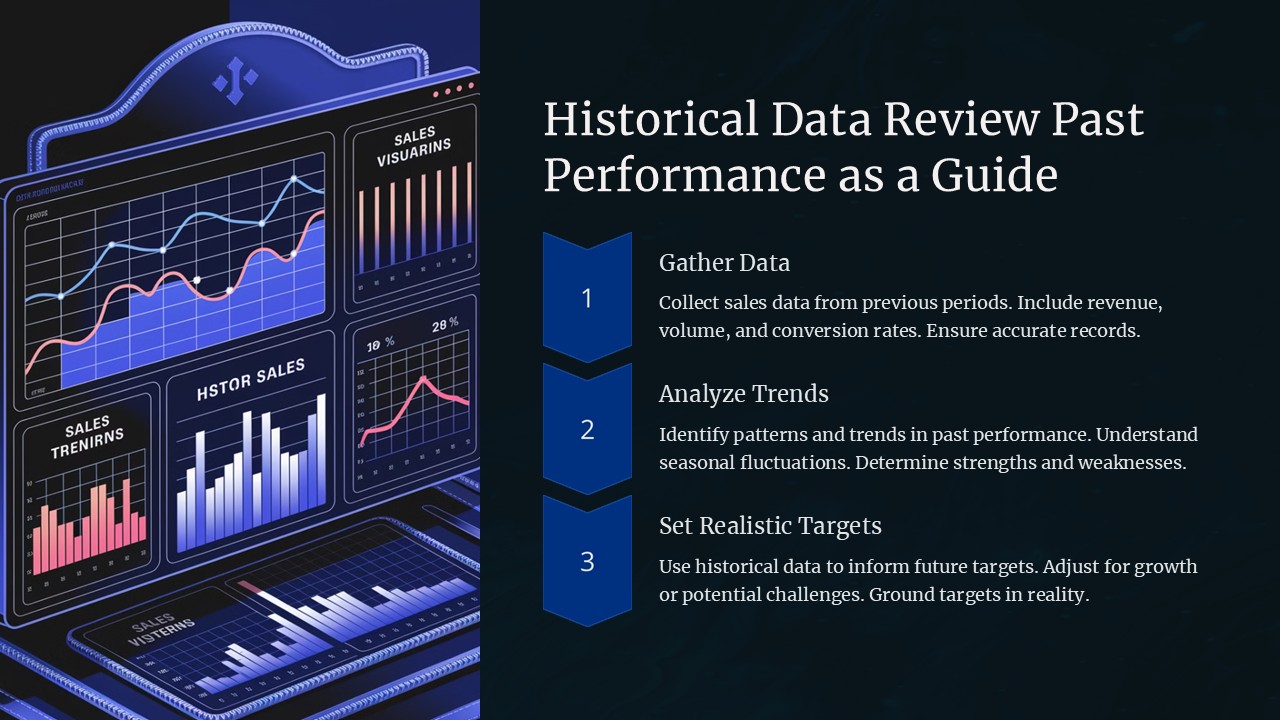


About this PowerPoint template
The Year in Review PowerPoint Template is a complete 25-slide presentation: outcomes, lessons, and priorities for the year ahead. Every slide is fully editable in PowerPoint and Google Slides, so you can change the text, colours, charts and icons to fit your brand in minutes.
Inside, the slides walk through topics such as “Illustrative milestones map a year’s progress”, “Outcomes that met or exceeded expectations Practices worth repeating” and “A meaningful result or change the work aimed to achieve”, with ready-made layouts for each step. It is part of our Business Strategy & Planning presentations.
On this page
What's included
- 25 professionally designed 16:9 widescreen slides
- 100% editable text, shapes, icons, tables and charts (no flat images)
- Works in Microsoft PowerPoint (Windows and Mac) and Google Slides
- Clean, consistent layout that follows your theme colours and fonts
- Delivered as a single ZIP file containing the .pptx presentation
What to include in a strategy presentation
A simple structure that works for most audiences, mapped to the slides in this deck:
| Part | What goes there | Slide in this deck |
|---|---|---|
| Where we are | Current position, results and context | Slides 2, 3, 12 |
| Where we want to go | Vision, mission and goals | Slides 16, 17 |
| How we get there | Strategic pillars and initiatives | Slides 2, 3, 7 |
| Resources | People, budget and capabilities | Slide 4 |
| Measures | KPIs, milestones and review rhythm | Slides 2, 3, 5 |
Key numbers: Strategy execution
Research figures you can quote on your slides. Each one names the study it comes from, so your audience can check it.
| Finding | Figure | Source |
|---|---|---|
| Firms that struggle to bridge strategy and day-to-day implementation | 61% | Economist Intelligence Unit for PMI (2013) |
| Strategic initiatives that did not succeed over three years | 44% | Economist Intelligence Unit for PMI (2013) |
| Strategic initiatives that succeed when projects are highly aligned to strategy vs poorly | 65% vs 35% | PMI Pulse of the Profession (2014) |
| Leaders naming leadership buy-in as the top reason initiatives succeed | 51% | Economist Intelligence Unit for PMI (2013) |
Sources: PMI and EIU, Why Good Strategies Fail (press release) · PMI, Bridging the chasm. Figures are from the editions named; check for a newer edition before you present.
Slide-by-slide outline
| Slide | What it covers |
|---|---|
| 1 | Title slide: Year in Review |
| 2 | The review moves from results to priorities |
| 3 | A clear review brings results into context, examines pivotal moments, and turns learning into priorities.… |
| 4 | Consider performance, customer experience, delivery, and organizational capability for a balanced view. |
| 5 | Illustrative milestones map a year’s progress |
| 6 | Illustrative metrics quantify a year’s results |
| 7 | Assess satisfaction, retention, and feedback themes. |
| 8 | Grow revenue; measure annual growth. Protect margins; measure operating margin. |
| 9 | Consider external forces before interpreting results. |
| 10 | External forces help explain results |
| 11 | Read plans alongside outcomes |
| 12 | Review period and comparison period Measures and data sources Teams and activities covered Material… |
| 13 | Measure effort by the value it creates, not by volume alone. |
| 14 | Outcomes that met or exceeded expectations Practices worth repeating |
| 15 | Audience input can sharpen the review |
| 16 | Use what the year revealed to focus future priorities and action. |
| 17 | Future priorities should balance focus and resilience |
| 18 | Turn review findings into a repeatable action process |
| 19 | Five questions keep the review focused |
| 20 | Use verified findings to select a few focused improvements, assign owners, and track progress against… |
| 21 | Describe the context, the outcomes, and the evidence behind them. Then state what the year taught you and… |
| 22 | The review should leave clear questions answered |
| 23 | A meaningful result or change the work aimed to achieve. |
| 24 | Use evidence to choose what deserves attention next |
| 25 | Discuss the evidence, confirm priorities, and continue the conversation. |
Tips for a strategy presentation
- Limit yourself to three to five strategic priorities.
- Link each priority to projects; PMI found aligned projects succeed far more often.
- Show who owns each priority.
- Set a review rhythm so the plan is tracked, not filed.
Mistakes to avoid
- Too many priorities
- Strategy with no link to budgets or projects
- No owners or measures
Checklist before you present
- Is the current position clear?
- Are goals measurable?
- Are priorities few and clear?
- Does each have an owner?
- Are KPIs and review dates set?
Great for
- Board meetings and leadership offsites
- Annual and quarterly planning
- Executive summaries and business reviews
- New role and first-100-days plans
How to customise it
- Download the ZIP file and unzip it to get the .pptx presentation.
- Open it in PowerPoint, or upload it to Google Drive and open it with Google Slides.
- Replace the sample text and numbers with your own; charts update from their data sheets.
- Change the theme colours once to recolour the whole deck, then delete any slides you don't need.
Questions about a strategy presentation
What is the difference between a vision and a mission?
A vision describes the future you want to create; a mission describes what you do today and for whom.
How do I turn a strategy into an action plan?
Break each priority into initiatives, give each an owner, budget and milestones, and track them in a regular review.
Related presentations
- Infinity Loop PowerPoint Presentation
- Vision, Goals, Strategies and Tactics PowerPoint Template
- First 100-Day Plan for a New Position PowerPoint Template
- Agenda PowerPoint Template
Browse all Business Strategy & Planning presentations or more strategy templates.
Template details
| Template | Year in Review PowerPoint Template |
|---|---|
| Categories | Strategy, Business Strategy & Planning |
| File format | PowerPoint (.pptx), delivered as a .zip file |
| Number of slides | 25 fully editable slides |
| File size | 2.8 MB |
| Slide size | 16:9 widescreen |
| Preview images | 25 |
| Editable | Yes: text, colours, shapes, icons and charts |
| Works with | PowerPoint 2010 and later, PowerPoint for Mac, Google Slides |
| Licence | Royalty-free, yours to keep using after your plan ends (terms of use apply) |
| Price | Included in every SlideVilla plan |
| Added | 5 Sept 2025 |
Questions about this template
Can I edit the Year in Review PowerPoint Template?
Yes. Every part of the Year in Review PowerPoint Template is made with native PowerPoint shapes and text boxes, so you can change the wording, colours, fonts and sizes, move or delete elements, and swap icons without losing quality.
Does the Year in Review PowerPoint Template work in Google Slides?
Yes. Download the .zip file, unzip it to get the .pptx, upload it to Google Drive and open it with Google Slides. The layout, shapes and text stay editable there too.
Is the Year in Review PowerPoint Template free?
It is a premium template, included in every SlideVilla plan together with the rest of the library. See plans and pricing.
What size and format is it?
It is a PPTX file in 16:9 widescreen format with 25 slides, 2.8 MB (downloaded as a .zip; unzip it to get the presentation), with 25 preview images shown above.
How to use this template
- Step 1DownloadClick Download, then unzip the .zip file to get the .pptx presentation.
- Step 2OpenOpen it in PowerPoint, or upload it to Google Slides from your Drive.
- Step 3Make it yoursChange text, colours, icons and charts. Every element is fully editable.
Categories
Tags
Related PowerPoint templates
More designs like this one, ready to edit.